Example 2 - Approve vs. Deny Requests Email Conditions

I want the Owner Notification email to send a different message depending on the outcome of the request — whether it is Approved or Denied.

The form contains a field that records this outcome, and the conditions are based on that question’s response.

approve/deny form item

I’m going to create two conditions: Request is Approved vs. Request is Denied

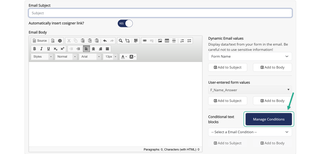
  1. In the custom email editor, click Manage Conditions

    NOTE: ‘Customize Owner Notification Email’ must be enabled to customize the email
     

Select Manage Conditions
  1. In the window that opens, click add a New Email Condition
Add a new email condition
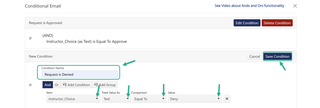
  1. Enter the first condition, naming it based on its function so it’s easy to identify. In this scenario, the condition is named Request is Approved because the instructor choice is based on the instructor’s approval. Then, select the corresponding criteria shown by the arrows in the image below, and click Save Condition
request approved condition
  1. Click Add a New Email Condition to continue adding conditions. In this scenario, I’m adding one for when the Request is Denied. Click Save Condition after adding each condition
Add a new email condition
Add Denied Condition
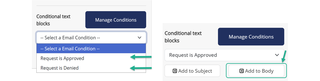
  1. Once back in the Custom Email Editor screen, open the Select an Email Condition dropdown menu and select each condition, then click Add to Body to insert it where you want it to appear in the email
Adding conditions to body

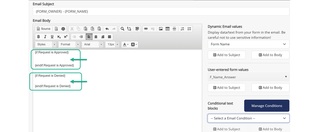
            NOTE: The editor adds the curly brackets into the email body showing each condition within “if”             and “endif” curly brackets. In between those brackets is where you enter the text that will                             appear only IF that specific condition is met

Text in curly brackets
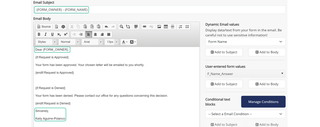
  1.  Type the message that should display when the condition is met inside the curly brackets. In this example, there’s one message for requests that are Approved and another for those that are Denied

    NOTE: The text circled in green will be sent regardless of the conditions in this scenario
     

Text outside curly brackets

         Click Save

Click save

Questions? Contact Dynamic Forms ITS Team by emailing DynamicForms.ITS@yale.edu