I want the Co-Signer email to send a different message depending on the student’s status: International or Non-International.
The form contains a field that records the student’s status, and the conditions are based on that question’s response.
The form contains a field that records the student’s status, and the conditions are based on that question’s response.

I’m going to create two conditions: International Student vs. Non-International Student
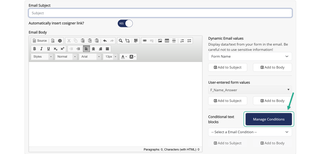
In the custom email editor, click Manage Conditions
NOTE: ‘Customize Cosigner Email’ must be enabled to modify the email




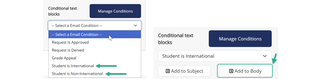
NOTE: The editor adds the curly brackets into the email body showing each condition within “if” and “endif” curly brackets. In between those brackets is where you enter the text that will appear only IF that specific condition is met
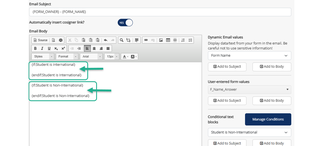
Type the message that should display when the condition is met inside the curly brackets. In this example, I have a message for the students that are International, and another for students that are not international
NOTE: The text circled in green will be sent regardless of the conditions in this scenario
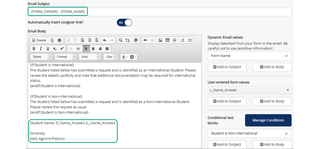
Click Save

Questions? Contact Dynamic Forms ITS Team by emailing DynamicForms.ITS@yale.edu